
How Many Monitors Should You Use at Work?
Posted on 23 April 2026

Introduction
The way people use computer screens in the workplace has changed significantly over the last 20 years.
In the past, most office workers used a single monitor positioned directly in front of them. Today it is increasingly common to see two monitors, or even more complex setups such as a laptop connected to multiple screens.
Some workplaces are now also using very large curved monitors as an alternative to multiple screens.
So what is the best option from an ergonomic perspective?
As a Chartered Physiotherapist carrying out DSE workstation assessments, I regularly see a wide variety of screen setups in offices and home working environments. The key issue is not simply how many screens someone uses, but how those screens are positioned and used during the working day.
Single Monitor Workstations
For many years, the standard workstation setup featured a single monitor positioned directly in front of the user.
Advantages
A single screen has several ergonomic benefits:
For many types of work, particularly word processing or tasks involving a single system, one monitor may be perfectly adequate.
Limitations
However, some jobs require workers to compare information across multiple documents or applications. Constantly switching between windows can slow productivity and increase the use of the keyboard and mouse.
In these situations, additional screens can sometimes improve workflow.
Dual Monitor Workstations
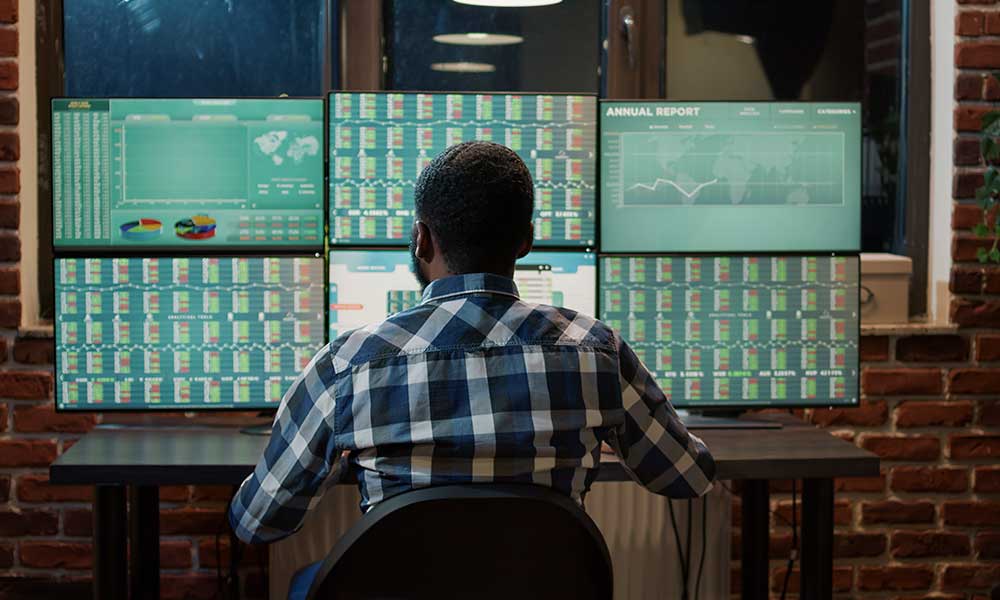
Using two screens is now very common in many offices.
For example, a worker may use:
Advantages of Dual Screens
Dual monitors can:
Potential Ergonomic Issues
However, dual screens can create ergonomic problems if they are positioned poorly.
Common issues include:
If both screens are used equally, they should ideally be positioned directly in front of the user with a slight inward angle.
If one screen is used more frequently, the primary screen should be positioned directly in front of the user, with the secondary screen placed to the side.
Laptop Screens and External Monitors
Another common setup involves laptops connected to external monitors.
Some workers may have:
While this may appear efficient, it can create ergonomic challenges.
Laptop screens are typically lower than ideal viewing height, encouraging workers to look downward for long periods. This may contribute to neck and upper back discomfort.
When laptops are used regularly, it is usually better to:
This allows the screen to be positioned closer to eye level, helping to improve posture.
Large Curved Monitors
Some organisations are now choosing large curved monitors instead of two separate screens.
These screens allow multiple windows to be displayed across one wide display.
Advantages
Large curved monitors can offer several benefits:
The curved design can also help maintain a consistent viewing distance across the screen.
Disadvantages
However, very large monitors can also present challenges.
Potential issues include:
As with all screens, correct height, distance and positioning remain essential.
Musculoskeletal Considerations (Neck Pain and Existing Conditions)
An important factor that is often overlooked is whether the individual already has a musculoskeletal issue, particularly involving the neck, shoulders, or upper back.
For individuals with a history of neck pain, stiffness, or conditions such as cervical spondylosis, workstation setup becomes even more critical.
Key considerations:
Clinical Insight
In practice, I often recommend that individuals with neck problems:
The goal is to reduce sustained or repetitive strain, rather than simply increasing screen availability.
The Importance of Monitor Arms
Another important consideration when setting up screens is how they are mounted.
Many modern workstations use monitor arms (lever arms) that allow screens to be positioned above the desk and adjusted easily.
A well-designed monitor arm should allow:
This flexibility allows the screen position to be adapted to suit the individual worker.
Poorly designed or rigid arms can restrict movement and make it difficult to achieve the correct viewing position. Ideally, screens should allow sufficient mobility and positional variability to enable easy adjustment throughout the day.
The Most Important Ergonomic Principle
The number of screens used is less important than how they are positioned and used.
Good workstation practice includes:
The aim is to support comfortable viewing while minimising strain on the neck and shoulders.
Final Thoughts
Modern workplaces now use a wide range of screen setups, including single monitors, dual screens and large curved displays.
There is no single solution that works for everyone. The best setup depends on:
What matters most is ensuring that screens are positioned correctly and adjusted to suit the user, while encouraging regular movement throughout the working day.
Need Help with DSE Workstation Assessments?
Fit4Work provides IOSH Approved DSE Assessor Training to help organisations carry out effective workstation risk assessments and improve employee wellbeing.
Training is delivered by Chartered Physiotherapist Angela Hinton, with over 30 years of experience in workplace ergonomics and injury prevention.
Tagged as: